
Your Technical SEO Checklist + 29 Fixes That Work

Most websites have between 20 and 50 outstanding technical SEO issues at any given time, and knowing what they are is only half the job. Fixing them is where the actual ranking gains happen, and that’s what this guide is for.
If you’ve already run a full site audit using our SEO audit checklist, you’ve got a list of problems. Now you need the solutions. This technical SEO checklist goes through the most common issues search engines flag: on-page SEO errors, crawlability problems, Core Web Vitals failures, schema markup gaps, and more, and gives you the specific steps to actually fix them.
Think of our SEO audit guide as the diagnosis, and this as the treatment plan.
We’ve structured this as a practical on-page SEO checklist and technical fix guide in one, because the two overlap more than most people realise. Title tags, header tags, meta descriptions, internal links. These are both on-page SEO activities and technical SEO concerns. We’ve covered them all here so you don’t have to cross-reference multiple documents to get your site in order.
Grab a free SEO audit + fix action plan
What Is Technical SEO? (And Why the Fixes Matter More Than the Findings)
Technical SEO is the practice of optimising your website’s infrastructure so search engines can crawl, index, and rank your pages correctly. It’s the layer of SEO that sits beneath your content, and if it’s broken, every other optimisation effort you make is working harder than it should.
The difference between spotting technical SEO issues and fixing them is the difference between knowing your car has a fault and actually getting it repaired. A lot of businesses get an audit done, receive a report full of errors, and then don’t know where to start. This technical SEO checklist is designed to close that gap.
Technical SEO includes crawlability and indexation, page speed and Core Web Vitals, URL structure and redirects, HTTPS security, mobile-friendliness, XML sitemaps, robots.txt, structured data and schema markup, canonical tags, and internal linking. It also overlaps significantly with on-page SEO in areas like title tags, meta descriptions, and header tags.
On-Page SEO Fixes: Your Checklist for Getting Pages Right
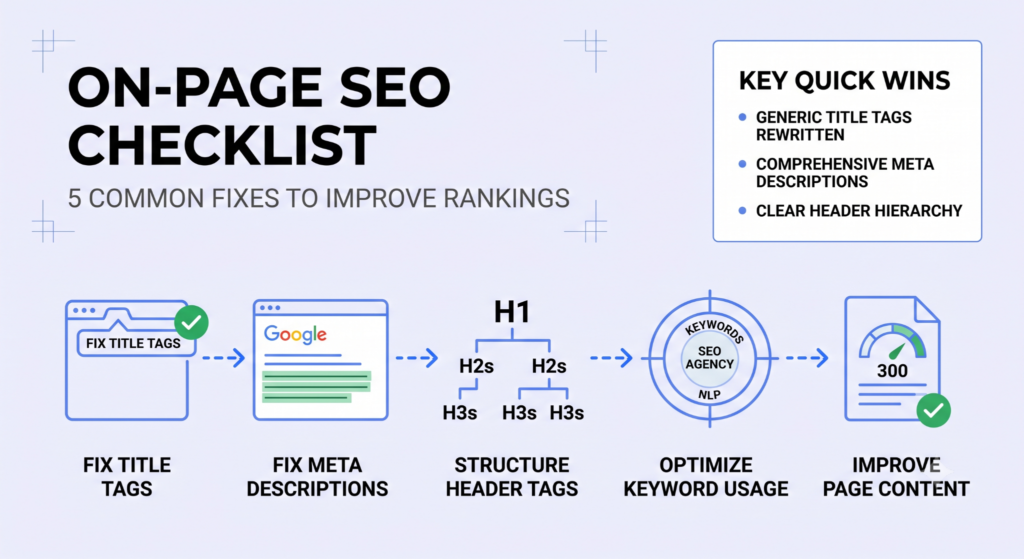
On-page SEO is everything that happens directly on your web pages: the title tags, meta descriptions, header tags, content, and keyword usage that search engines read to understand what your pages are about. These elements are the most visited items on any on-page SEO checklist, and they’re also where simple errors quietly damage your search rankings for months without anyone noticing.
This section covers the 5 most common on-page SEO issues and, more importantly, exactly how to fix them.
Fix 1: Missing, Duplicate, or Too-Long Title Tags
A missing title tag is one of the most common on-page SEO issues, and it means Google writes your title for you, which it rarely does as well as you would. Title tags are the single most important on-page SEO element for signalling what a page is about. Every page on your site needs one, and every one should be unique.
How to find title tag issues
The fastest way is a Screaming Frog crawl filtered by the ‘Page Titles’ tab. It shows you every page missing a title tag, every duplicate, and every tag over 60 characters. Google Search Console’s Coverage report also highlights pages Google can’t properly read, which often includes title tag issues. If you’re doing a manual spot-check, look at the browser tab when you load a page. If it shows your site name and nothing else, the title tag is either missing or generic.
How to fix title tag issues
- Missing title tags: Add a unique title tag to every page. Include the primary target keyword, keep it under 60 characters, and write it for humans first. “Technical SEO Checklist: 29 Fixes That Actually Work | Dandy Marketing” is better than just “Technical SEO”.
- Duplicate title tags: Two pages with the same title tell search engines the content might be the same. Give each page a unique title reflecting its specific content and primary target keywords. Avoid keyword stuffing your title tags with multiple keyword variants, one clear, specific target keyword per title is the right approach. This is especially common on ecommerce sites where product category pages get the same default title.
- Title tags over 60 characters: Google truncates anything longer in search results. Front-load the most important information, your primary keyword should appear in the first 30 characters if possible.
In WordPress, Yoast SEO and Rank Math both give you a dedicated title tag field on every post and page. In Shopify, title tags are editable under the ‘Search engine listing’ section on each product or page.
In our experience onboarding new clients, generic title tags are one of the most consistent quick wins available. A service page titled “SEO Services | Company Name” is easy to rewrite as “SEO Agency London: Grow Your Organic Traffic | Dandy Marketing”, a change that takes under 2 minutes per page but regularly produces CTR improvements at the same ranking position within 4-6 weeks. Rankings don’t need to move for you to get more clicks out of the same position. That’s the value of getting title tags right.
Fix 2: Meta Descriptions That Are Missing, Duplicate, or Too Long
Meta descriptions don’t directly affect search rankings, but they directly affect how many people click your listing, and a well-written meta description can improve CTR even at the same position. Search engines display them underneath your title in the search results. Leave them blank and Google picks a random excerpt from your page, which is rarely your best foot forward.
Writing compelling meta descriptions
- Missing meta descriptions: Write a unique description for every page. Aim for 150-160 characters. Include the primary keyword naturally, and give people a clear reason to click: answer the “what’s in it for me?” question in one sentence.
- Duplicate meta descriptions: Common on sites with lots of similar pages. Run a Screaming Frog crawl and filter by duplicate meta descriptions, then rewrite each one to reflect what’s unique about that specific page.
- Meta descriptions over 160 characters: Google cuts them off in search results. Keep your key message within the first 155 characters so it’s always visible.
A compelling meta description for this page might read: “Find and fix the most common technical SEO issues holding your site back: from 4xx errors and slow Core Web Vitals to broken internal links and missing schema.”
Fix 3: Header Tags in the Wrong Order or Missing H1s
Every page should have exactly one H1, and it should include the page’s primary keyword. Header tags (H1, H2, H3) form the hierarchy that helps search engines understand the structure of your content. Get them wrong and you’re making search engines work harder to understand your pages. Get them right and you help both search engines and users navigate your content clearly.
The correct heading hierarchy for SEO
- Missing H1: Add an H1 to every page. It should match or closely reflect your title tag. Older WordPress themes sometimes assign H1 to your site name across every page. Check this with your browser’s Inspector tool (right-click > Inspect > CTRL+F for “h1”).
- Multiple H1s: Use exactly one H1 per page. If your theme or page builder is generating more, fix it at the template level.
- Heading hierarchy that skips levels: Don’t jump from H1 directly to H4. Use H2, then H3, in order. Skipping heading levels affects both accessibility and how search engines parse your content structure.
Clear header tags are also a key factor in AI Overview visibility, AI systems extract structured answers from pages with well-defined heading hierarchies, so getting this right has value beyond traditional search engine optimisation.
Fix 4: Target Keywords Not Appearing in the Right Places
A page can’t effectively rank for a keyword that doesn’t appear in its title tag, H1, and first 100 words. Search engines assign more weight to keyword signals in prominent positions, so a keyword buried at the bottom of page 3 of your content is doing far less work than the same keyword in your H1.
To fix keyword placement in your on-page SEO checklist:
- Put your primary keyword in the title tag, the H1, and the first paragraph.
- Use relevant secondary keywords naturally in H2 subheadings throughout the page.
- Use Google Search Console’s Performance report to check which queries each of your pages actually ranks for. If the queries you’re ranking for don’t match your target keywords, the on-page content probably needs updating.
- Use keyword research tools like SEMrush or Ahrefs to confirm your target keywords have sufficient search volume and that they match the search intent of the page: informational queries need informational content, transactional queries need pages that help people buy or enquire.
Keyword stuffing, which means forcing the same keyword into every other sentence, is both ineffective and actively penalised. 1-2% keyword density (roughly 10-20 mentions per 1,000 words) is an old common rule of thumb, as anything beyond that looks like manipulation to search engines, and they’ll penalise it accordingly. However, as even 1-2% of direct keyword repetition can appear a little spammy, TF-IDF (Term Frequency-Inverse Document Frequency) provides a more advanced mathematical measure of how important a word is to a document compared to a larger set of texts.
Keyword stuffing is one of the most common on-page SEO mistakes, and it’s also one of the easiest to avoid: write for your reader first, and your target keywords will appear at a natural frequency. Semantic SEO tactics do this well, putting the whole topic and its most relevant connections at the centre of the text, rather than just key terms.
For the beginners here, a good rule of thumb when reviewing your on-page SEO checklist for keyword usage: if reading a sentence aloud sounds unnatural because of repeated keyword use, it’s keyword stuffing. Remove the excess and let the page’s overall semantic relevance do the work instead.
Fix 5: Thin Content and On-Page Duplicate Content
Pages with fewer than 300 words are regularly classified as thin content by search engines, and they rarely rank in competitive results. Thin content isn’t just about word count, a 2,000-word page that says nothing of value is still thin content. But word count is the easiest proxy to check first.
To fix thin and duplicate page content:
- Use Screaming Frog or Ahrefs Site Audit to identify pages below 300 words. For each one, decide whether to expand the content substantially, merge it with a related page using a 301 redirect, or noindex it if it has no organic value.
- For duplicate content across your own pages (where two URLs show identical content), use a canonical tag to point search engines at the preferred version. If /blog/seo-tips and /blog/seo-tips?source=newsletter show identical content, the second URL needs a canonical tag pointing to the first.
- For duplicate content caused by URL parameters (filtering, sorting, pagination), implement canonical tags at scale, pointing every parameter variant back to the clean base URL. This is one of the most common sources of duplicate content on ecommerce and large content sites.
- For ecommerce category pages, even 100-150 words of unique, relevant introductory copy changes how search engines treat the page, and it’s one of the highest-ROI on-page SEO activities you can do for ecommerce sites. Duplicate category descriptions shared across multiple pages are a duplicate content issue that’s easy to fix and fast to impact.
Grab a free SEO audit + fix action plan
Technical SEO Crawlability Fixes
Crawlability is the foundation of everything. If search engines can’t reach your pages (because they’re blocked, returning errors, or missing from your sitemap), nothing else on this on-page SEO checklist matters. These are the technical SEO fixes to prioritise first.
Fix 6: 4xx Errors (Pages Returning “Not Found”)
Every 4xx error on your site is a dead end for search engine bots, and if that dead end used to be an important page, you’ve likely lost the rankings and backlink equity it had. 4xx errors occur when a page has been deleted or moved without a redirect being put in place. The most common is a 404 (page not found), but 410 (gone) errors also appear on sites that have removed content permanently.
Are 404 errors bad for SEO?
Yes, not because a single 404 is catastrophic, but because a site with many 404 errors signals poor maintenance to search engines, wastes crawl budget, and breaks the flow of PageRank through your internal link structure. Every page you link to internally that returns a 404 is a dead internal link, which dilutes your on-page SEO and makes search engines less likely to trust your site structure.
To fix 4xx errors:
- Find all 4xx errors in Google Search Console under Coverage > Excluded > Not Found (404).
- For pages that still exist at a new URL, set up a 301 redirect from the old URL to the new one. In WordPress, the Redirection plugin handles this cleanly. In Shopify, redirects are managed under Online Store > Navigation > URL Redirects.
- For pages that have been permanently removed, check whether any pages on your site link to them. Update those internal links to point to a live, relevant page.
- If the 4xx is being caused by external backlinks pointing to a dead URL, a 301 redirect to the closest equivalent live page recovers the backlink equity.
Fix 7: 5xx Server Errors
5xx errors mean your server failed to respond properly, and they’re bad for both users and search engines, persistent ones cause search engines to reduce their crawl rate across your entire site. A 500 error (internal server error), 502 (bad gateway), or 503 (service unavailable) all tell search engines that your server is having problems.
Are 500 errors bad for SEO?
Yes, sustained 5xx errors cause a measurable drop in crawl frequency, meaning fewer pages get indexed and search rankings fall. A single occasional 500 error is unlikely to cause lasting harm. A pattern of them, or a site-wide server outage lasting several hours, can cause ranking losses that take weeks to recover. Google’s John Mueller has confirmed that persistent server errors can lead to Google reducing how often it crawls a site, which compounds the problem.
To fix 5xx errors:
- Check your Google Search Console Coverage report for 5xx errors.
- Review your server error logs via your hosting control panel to identify the root cause. Common causes include PHP memory limit issues, database connection failures, and plugin conflicts on WordPress.
- If errors are linked to traffic spikes, talk to your host about scaling server resources or adding a CDN (content delivery network) like Cloudflare to distribute the load.
- Shared hosting plans are the most common cause of persistent 5xx errors on growing sites. Migrating to a VPS or managed WordPress host (WP Engine, Kinsta, or Cloudways) typically resolves server reliability issues.
Fix 8: Robots.txt Blocking Important Pages
A single misplaced line in your robots.txt file can block search engines from accessing your entire site, and it’s a surprisingly common cause of sudden, unexplained ranking drops. The robots.txt file tells search engine bots what they’re allowed to crawl. Misconfiguration here affects everything downstream.
To fix robots.txt issues:
- Access your robots.txt file at yoursite.com/robots.txt. Check for any Disallow: / line with no further qualifier. This blocks everything.
- Use Google Search Console’s robots.txt tester (under Settings) to test specific URLs and check whether they’re being blocked.
- Only block content that genuinely shouldn’t be indexed: admin areas, thank you pages, checkout and cart pages, duplicate filter URLs.
- After any change to robots.txt, submit a fresh XML sitemap in Google Search Console to prompt a re-crawl of newly accessible pages.
JavaScript files are a common robots.txt mistake. If your site uses JavaScript frameworks (React, Vue, Angular), blocking JS files in robots.txt can prevent search engines from rendering your pages at all. They’ll see a blank shell instead of your content.
Fix 9: Canonical Tag Problems
Canonical tags tell search engines which version of a page is the definitive one, and when they’re wrong, missing, or contradictory, search engines end up splitting ranking signals between versions of the same content. Canonical issues are one of the top causes of pages failing to rank despite having good content.
Self-referencing vs cross-page canonicals
A self-referencing canonical (a canonical tag that points to the page itself) should appear on every page of your site. It’s a clean signal that confirms this URL is the intended version. A cross-page canonical points from one URL to a different preferred URL, typically used to handle duplicate or near-duplicate pages.
To fix canonical tag issues:
- Crawl your site with Screaming Frog and review all canonical tags under the ‘Canonicals’ tab. Look for pages with no canonical, pages where the canonical points to a different domain unintentionally, and pages where the canonical URL returns a 4xx error.
- For pages with no canonical, add a self-referencing canonical tag in the <head>. In WordPress, Yoast SEO and Rank Math add these automatically.
- For ecommerce sites using URL parameters for filtering and sorting (e.g., /dresses?colour=red&size=12), ensure all parameter-based URLs canonicalise back to the clean category URL.
- Always use absolute URLs in canonical tags (including the full domain), not relative ones, relative canonicals can produce unintended results.
Fix 10: XML Sitemap Errors
An XML sitemap is a direct communication to search engines about which pages on your site exist and should be crawled, but a sitemap containing 404 pages, noindexed URLs, or redirect chains makes that communication unreliable. A clean, accurate sitemap is one of the simplest technical SEO improvements you can make.
To fix sitemap issues:
- Check that your sitemap only contains pages you actively want indexed. Remove any nonindexed pages, 4xx URLs, redirect chains, and duplicate URLs.
- Submit your sitemap in Google Search Console under Sitemaps, and check whether Google has processed it without errors.
- In WordPress, Yoast SEO and Rank Math auto-generate and maintain correct sitemaps. For Shopify, the sitemap is automatically generated at yoursite.com/sitemap.xml.
- Update your sitemap after adding or removing significant pages (most plugins handle this automatically), but manually verify after a major site restructure.
Core Web Vitals and Page Speed Fixes
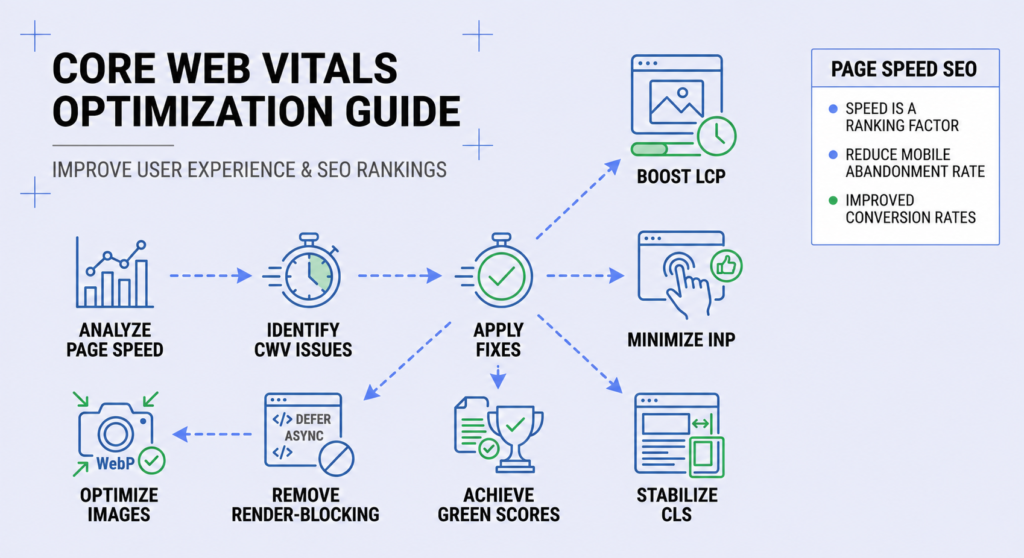
Core Web Vitals are Google’s 3 official user experience metrics and they’re a confirmed direct ranking factor. Google PageSpeed Insights (pagespeed.web.dev) gives you a free score for any URL. Run it before and after making any of these fixes so you can see the impact. The 3 metrics are LCP (Largest Contentful Paint), INP (Interaction to Next Paint), and CLS (Cumulative Layout Shift). We’ve also got a dedicated guide to improving Core Web Vitals if you want to go deeper on any of the three metrics below.
Fix 11: Largest Contentful Paint (LCP) Above 2.5 Seconds
LCP measures how long it takes for the main visible content element on your page to load, Google wants this under 2.5 seconds, and anything above 4 seconds is classified as “Poor”. The LCP element is almost always the hero image or main banner at the top of your page, which makes image optimisation the first place to look.
To fix slow LCP:
- Optimise your hero image. Convert it to WebP format (25-35% smaller than JPEG at equivalent quality) and ensure it’s set to loading=”eager” in the HTML rather than lazy-loading, so the browser prioritises it.
- Preload the LCP image. Add a <link rel=”preload” as=”image”> tag in your <head> for the LCP image. This tells the browser to fetch it as early as possible, before it even begins rendering the page.
- Use a content delivery network (CDN). A CDN serves your assets from servers physically close to your users, reducing the time taken to fetch resources. Cloudflare’s free tier improves LCP for most sites.
- Upgrade your hosting. Shared hosting is the single most common cause of slow LCP. Managed WordPress hosts like WP Engine and Kinsta typically deliver server response times under 200ms, compared to shared hosting which can average 600-1,200ms.
Fix 12: Interaction to Next Paint (INP) Above 200ms
INP replaced First Input Delay as a Core Web Vital in March 2024, and it measures how quickly a page responds to any user interaction, a click, a tap, a keyboard input. An INP above 500ms is classified as “Poor” by Google’s page speed guidelines.
To fix poor INP:
- Open Chrome DevTools, run a Performance recording while interacting with the page, and look for “Long Tasks”. Any task exceeding 50ms in the main thread is a potential INP culprit.
- Add defer or async attributes to non-critical JavaScript files so they don’t block the main thread.
- Audit your Google Tag Manager container. Over-loaded GTM setups with dozens of triggers firing on every interaction are a common cause of high INP. Remove unused tags and consolidate where possible.
- In WordPress, plugins like WP Rocket and Asset CleanUp let you load JavaScript only on the pages where it’s needed, reducing the JavaScript burden on every page load.
Does page speed affect SEO?
Yes, page speed is a direct ranking factor through Core Web Vitals, and slow sites rank lower than equivalent fast ones. Beyond rankings, the user impact is stark: Google’s own research shows a 53% mobile abandonment rate for pages taking longer than 3 seconds to load, compared to 10% for pages loading in 1 second. For most businesses, improving page speed is both an SEO win and a conversion rate win at the same time.
Fix 13: Cumulative Layout Shift (CLS) Above 0.1
CLS measures visual stability, specifically how much your page layout shifts around while it’s loading. A CLS score above 0.25 is “Poor”. The main culprits are images without declared dimensions, late-loading web fonts, and banner ads injected at the top of the page during load.
To fix high CLS:
- Add explicit width and height attributes to every image in your HTML. This lets browsers reserve the right amount of space before the image loads, preventing the content below from jumping down.
- Use font-display: swap or font-display: optional in your CSS for custom web fonts. This prevents invisible text and layout shifts caused by fonts loading late.
- Avoid injecting cookie banners, newsletter pop-ups, or promotional bars at the top of the page during the initial load. These push all the content below them downwards and create a large CLS spike.
- Use your CDN to cache and pre-serve web fonts, reducing the chance of a late font load.
Fix 14: Uncompressed or Oversized Images
Images are responsible for 50-70% of a typical web page’s total file size and uncompressed images are one of the most common causes of poor page speed scores. A single hero image saved straight from a camera at 8MB can single-handedly tank your LCP score, and it’s completely avoidable.
To fix image optimisation issues and reduce overall page weight:
- Convert all images on your site to WebP format. In WordPress, Smush and ShortPixel both batch-convert existing images to WebP. In Shopify, WebP is served by default.
- For manual compression before upload, Google’s free Squoosh tool (squoosh.app) lets you set a target file size, preview quality at different compression levels, and download the optimised version.
- Use the srcset attribute to serve appropriately-sized images to different screen sizes. A mobile user shouldn’t be downloading a 2,400px-wide desktop hero image, with srcset, you can serve a 600px version to mobile and a 1,200px version to desktop.
- Set a maximum upload size policy: 1,200px wide is sufficient for almost all web use, and images rarely need to exceed 200KB for photos or 50KB for illustrations.
Fix 15: Render-Blocking JavaScript and CSS
Render-blocking resources are scripts and stylesheets that pause your page from loading while the browser processes them, even if they’re not needed for the content visible above the fold. Each render-blocking resource adds anywhere from 50ms to several seconds to your page load time.
To fix render-blocking resources:
- Add async or defer attributes to non-critical JavaScript. async downloads the script in parallel and executes it immediately on download; defer downloads in parallel but only executes after the HTML is parsed. For most third-party scripts, defer is the right choice.
- Minify CSS and JavaScript files. WP Rocket and LiteSpeed Cache do this automatically in WordPress. In Shopify, your theme’s assets are minified by default.
- Check Google PageSpeed Insights under “Eliminate render-blocking resources”, it lists every specific file causing the issue with estimated time savings for each one.
- For critical CSS (the styles needed to render above-the-fold content), inline them directly in your HTML <head> and load the rest asynchronously. This is an advanced fix, but it can cut render-blocking time by 200-400ms on sites with large stylesheets.
Ensuring your content can be rendered has become even more important with the rise of AI Search within ChatGPT, Gemini etc. These AI crawlers will not spend as much time trying to render your content as GoogleBot does.
URL Structure and Redirect Fixes
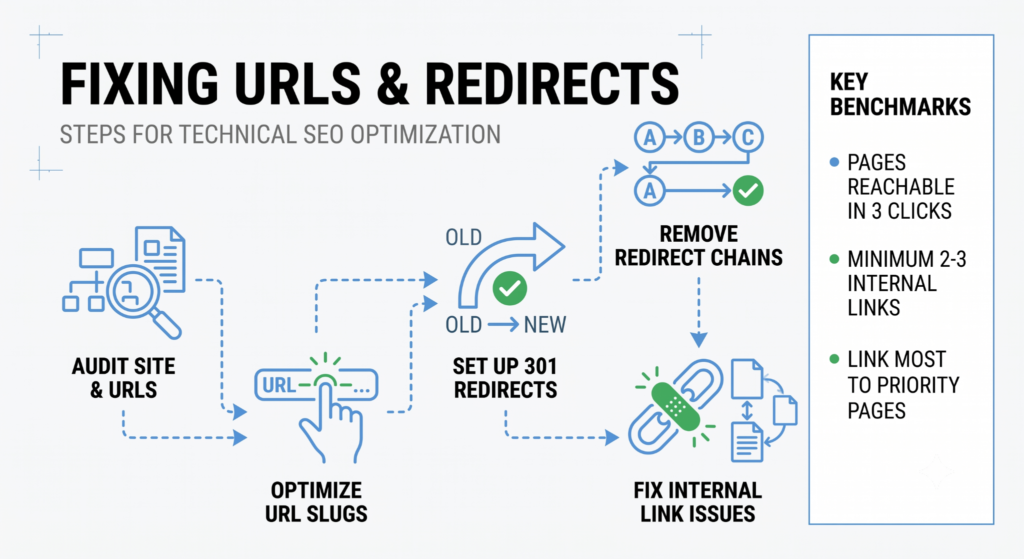
Your URL structure is part of your technical SEO foundation, it tells search engines how your site is organised and signals which pages are most important. Most URL issues are fixable, but they require careful handling because changing a live URL always means setting up redirects to preserve rankings.
Fix 16: URLs That Aren’t SEO Friendly
An SEO-friendly URL is short, lowercase, uses hyphens to separate words, and includes the primary keyword for the page. URLs like yoursite.com/page?id=452 or yoursite.com/products/cat1/subcatA/item-ref-49201 tell search engines nothing and look untrustworthy to users.
To fix URL structure issues:
- Use descriptive, keyword-containing URL slugs. dandymarketing.co.uk/blog/seo/technical-seo-checklist is better than dandymarketing.co.uk/?p=492.
- Use hyphens, not underscores, to separate words. Google treats hyphens as word separators; underscores are treated as connectors, which means “technical_seo” reads as one word to search engines.
- Keep URL slugs as short as possible while remaining descriptive. Remove stop words (and, the, of, for) from slugs unless they’re part of the keyword.
- Never change a live URL without setting up a 301 redirect from the old URL to the new one. Changing URLs without redirects is one of the fastest ways to lose rankings.
Fix 17: Redirect Chains
A redirect chain is where URL A redirects to URL B, which redirects to URL C, and each additional hop wastes crawl budget, slows page load time, and reduces the PageRank signal that passes through. Google follows up to 5 hops in a chain, but recommends resolving them regardless.
To fix redirect chains:
- Use Screaming Frog to crawl your site filtered by redirect chains (Response Codes > 3xx). It shows the full chain for each URL.
- Update the starting URL to redirect directly to the final destination, cutting out intermediate steps.
- Update all internal links to point directly to the final destination URL rather than going through the chain.
- Redirect chains are most common on sites that have migrated platforms or changed URL structures more than once. Check for them after any major URL restructure.
Fix 18: Broken Internal Links
Broken internal links (links pointing to 4xx pages from within your own site) damage user experience, waste crawl budget, and break the distribution of PageRank through your site architecture. A site where 10% of internal links point to dead pages is consistently underperforming what it could achieve.
To fix broken internal links:
- Crawl your site with Screaming Frog and filter by Inlinks > 4xx responses to see every internal link pointing to a broken page.
- Update each broken internal link to point to a relevant live URL. If the original destination no longer exists, link to the most closely related live page.
- Broken internal links are most common after platform migrations, URL structure changes, or content deletion. Make running this check part of your routine after any major site change, before you re-submit your sitemap.
Fix 19: Orphan Pages Getting No Internal Links
Orphan pages are pages that exist on your site but have zero internal links pointing to them. Search engines primarily discover new pages through internal linking, an orphan page may never get crawled or indexed, no matter how good its content is.
To fix orphan pages:
- In Google Search Console, cross-reference your sitemap pages against the pages Search Console has successfully crawled. Pages in the sitemap but missing from crawl data are often orphaned.
- Identify where on your site it would make sense to link to the orphan page: from your navigation, from related blog posts, or from a parent service or category page.
How many internal links per page?
There’s no official limit, but a good benchmark is: every page should be reachable within 3 clicks from your homepage, and every page on your site should have at least 2-3 internal links pointing to it. Pages you most want to rank should have the most internal links pointing to them from relevant pages.
Grab a free SEO audit + fix action plan
Internal Linking, Schema Markup and Structured Data Fixes
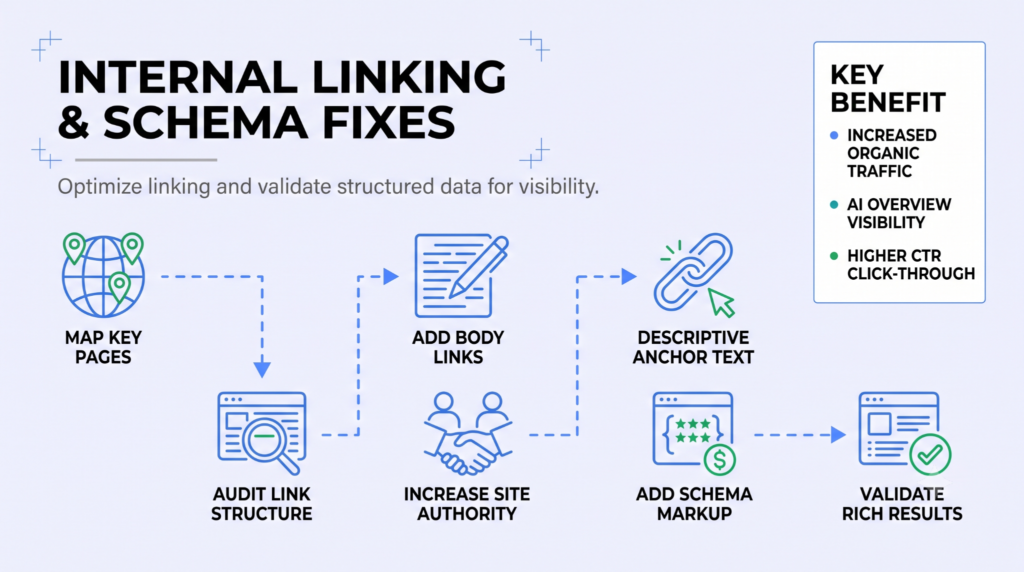
Internal links are one of the most underused on-page SEO tools available. They distribute PageRank across your site, signal to search engines which pages are most important, and guide users towards relevant next steps. Getting your internal linking right costs nothing and consistently moves rankings, yet it’s the thing most sites neglect longest.
On top of this, schema markup is the way you explicitly tell search engines what your content means, not just what it says. Getting structured data right earns enhanced search listings: star ratings, FAQ dropdowns, breadcrumbs, and other rich results that make your listing stand out in search results pages.
With AI Overviews now appearing for a large proportion of search queries, validated schema is also one of the strongest signals for AI search citation.
Fix 20: Weak or Generic Anchor Text
Anchor text is the clickable text of a link, and it’s one of the signals search engines use to understand what a linked page is about. Anchors like “click here”, “read more”, or “this page” tell search engines absolutely nothing about the destination.
To fix anchor text issues:
- Use descriptive anchor text that reflects the target keyword of the linked page. Linking to a page about your SEO services with anchor text “SEO services” is more effective than “our services”, and far better than “click here”.
- Vary anchor text naturally across multiple links to the same page. Don’t use the exact same phrase every time, or it starts to look artificial to search engines.
- Avoid over-optimised anchor text. Forcing the same exact-match keyword phrase into every internal link to a page is a pattern associated with manipulation. Use natural variations.
Fix 21: Key Commercial Pages With Too Few Internal Links
Your service pages, category pages, and key landing pages should have the most internal links pointing to them from relevant pages across your site. If your blog posts have more internal links than your commercial pages, you’re sending the wrong authority signals.
To fix internal linking gaps:
- Use Screaming Frog’s Inlinks report to check how many internal links each of your important pages receives. Sort by fewest links to find underserved pages.
- Look for opportunities to add internal links from high-traffic blog content to commercial pages. A blog post about technical SEO that gets 2,000 sessions a month passing authority to your technical SEO service page is a straightforward win.
- Add internal links within body copy, not just navigation menus. In-content links carry more SEO weight than navigational or footer links.
How to create a strong internal linking structure
Map your most valuable pages (the ones driving revenue or the ones you most want to rank), then audit how well each one is supported by internal links. For each underserved commercial page: find 3-5 existing blog posts or resource pages that relate to it, and add a contextual internal link from each. Do this for every commercial page and you’ll see measurable search ranking movement within 4-8 weeks in most cases.
Fix 22: Missing Schema Markup on Key Pages
Most websites are missing schema markup on at least some pages, and the pages that have it often have errors that stop it from triggering correctly. This is one of the quickest wins on a technical SEO checklist: adding correct schema to a page takes 10-15 minutes, and the impact (enhanced search listings, better AI visibility) can be immediate once Google re-crawls.
Which schema types to prioritise
Start with the schema types most relevant to your business:
- LocalBusiness: For any business serving a specific area: includes your address, opening hours, phone, and service area.
- Article or BlogPosting: For blog content: includes author information, publish date, and article headline.
- FAQPage: For any page with a Q&A structure: produces FAQ accordion dropdowns in search results.
- HowTo: For pages explaining a process step by step, tells search engines and AI systems your content contains actionable instructions.
- Product: For ecommerce product pages: enables star ratings, price, and availability in search results.
To generate schema markup, use Google’s Structured Data Markup Helper or Merkle’s Schema Markup Generator, both produce JSON-LD code you paste into your page <head>. In WordPress, Rank Math and Schema Pro give you detailed control over schema types per page. On Shopify, Product schema is applied to product pages automatically.
Fix 23: Schema Markup with Errors That Stop It from Triggering
Adding schema with errors doesn’t help, as search engines may ignore invalid structured data entirely. Even well-formatted schema can have problems: missing required fields, incorrect property values, or JSON-LD syntax errors all prevent rich results from triggering.
Does schema markup help SEO?
Yes, validated schema markup increases your chances of appearing in enhanced search listings and AI Overviews, which boosts click-through rate even at the same organic ranking position. Schema markup alone won’t lift your search rankings, but it makes your listing more visible and more compelling in search results pages, which does lift organic traffic.
To validate and fix schema:
- Run every page with schema through Google’s Rich Results Test (search.google.com/test/rich-results). It shows exactly which fields are valid, which are missing, and which schema types are successfully detected.
- Fix any “Required property missing” warnings. These prevent the schema from generating a rich result.
- Monitor your structured data across your whole site in Google Search Console under the Enhancements tab. Search Console flags live errors across all pages, not just individual URLs.
HTTPS, Security and Mobile SEO Fixes
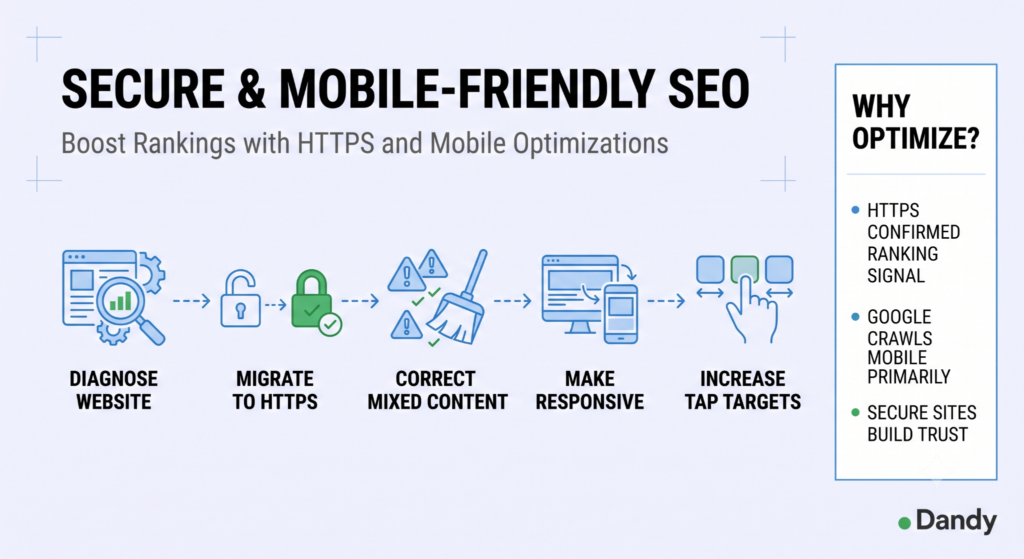
HTTPS has been a confirmed Google ranking factor since 2014. Mixed content errors on HTTPS pages create browser warnings that undermine user trust and reduce conversion rates, so these fixes matter both for SEO and for the basic credibility of your site.
Google also uses mobile-first indexing, it primarily crawls and ranks your site based on the mobile version. If your mobile experience is broken or slow, your search rankings suffer even if the desktop version is excellent. Over 60% of web searches now happen on mobile devices, so this isn’t a secondary consideration.
Fix 24: Mixed Content Errors on HTTPS Pages
Mixed content errors occur when an HTTPS page loads some resources (images, scripts, stylesheets) over HTTP. Browsers flag these with security warnings and the green padlock disappears from the address bar. For users who notice, it’s a trust signal in the wrong direction.
To fix mixed content errors:
- Use Why No Padlock (whynopadlock.com) to identify every mixed content error on a given page, it lists every HTTP resource being loaded on an HTTPS page.
- Update all internal resource URLs to use HTTPS. In WordPress, a plugin like Better Search Replace can update every HTTP reference to HTTPS across your entire database in a single operation, with a dry-run option to preview changes first.
- For embedded third-party content (YouTube videos, Google Maps, social media widgets), check whether HTTPS versions are available. They almost always are. Update all embeds to use https:// in the URL.
- After a recent migration from HTTP to HTTPS, run a full Screaming Frog crawl to catch any HTTP resources that were missed in the initial migration.
Fix 25: Site Not Fully on HTTPS
Google treats HTTPS as a ranking signal, and Chrome marks HTTP sites as “Not Secure” in the address bar, which reduces user trust and click-through rate directly. SSL certificates are now free through Let’s Encrypt, and most managed hosting providers install them with one click.
To migrate to HTTPS:
- Install an SSL certificate via your hosting control panel. cPanel-based hosts typically offer free Let’s Encrypt certificates with one-click installation.
- After installation, set up 301 redirects from all HTTP URLs to their HTTPS equivalents. In WordPress, the Really Simple SSL plugin handles this automatically and correctly.
- Update your canonical tags and XML sitemap to use HTTPS URLs throughout.
- In Google Search Console, add a new property for your HTTPS site if you haven’t already. Search Console tracks HTTP and HTTPS separately.
Fix 26: Site Not Mobile-Friendly
A site that isn’t mobile-responsive will rank lower in search results and lose the majority of its traffic. Mobile-friendliness means a layout that adapts fluidly to any screen size without horizontal scrolling, text that’s readable without pinching, and tap targets that are large enough to use.
To fix mobile friendliness:
- Test your site in Google’s Mobile-Friendly Test (search.google.com/test/mobile-friendly). It highlights specific issues: text too small to read, clickable elements too close together, content wider than the screen.
- On WordPress and Shopify, switching to a modern responsive theme resolves most mobile issues. Most themes built after 2020 are responsive by default.
- Test on real devices, not just browser emulators. Emulators sometimes pass tests that real devices fail, as tap target sizing and font rendering can differ significantly.
- Check your mobile Core Web Vitals separately in PageSpeed Insights; mobile scores are almost always lower than desktop, and Google’s rankings are based on mobile performance.
Fix 27: Tap Targets Too Small on Mobile
Google recommends tap targets (buttons, links, form fields) be at least 48×48 pixels with 8 pixels of space between them. Undersized tap targets cause misclicks, high bounce rates, and signal a poor mobile experience to search engines.
To fix tap target issues:
- Run your page through Google Lighthouse (in Chrome DevTools > Lighthouse tab) and look for “Tap targets are not sized appropriately”.
- Increase the minimum height of interactive elements in your CSS; 44px height is a good minimum for buttons and links.
- Add padding around text links in body copy so they’re easier to tap accurately, especially on small screens.
Is mobile SEO different from desktop SEO?
The principles are the same, but the priorities differ. Mobile users tend to have shorter sessions and lower tolerance for slow loading, so page speed fixes matter more for mobile. Tap target sizing and font legibility are mobile-specific concerns. And because Google indexes mobile-first, any page that’s accessible on desktop but blocked on mobile effectively doesn’t exist for search engine ranking purposes.
AI Search Visibility Fixes
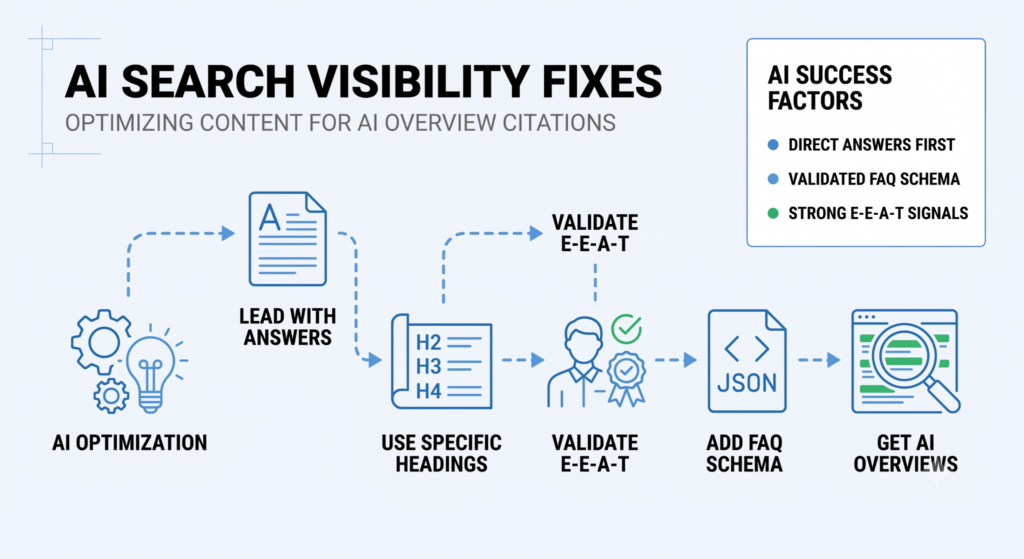
Google AI Overviews now appear for a significant proportion of search queries, and being cited in an AI Overview delivers visibility that’s separate from your organic ranking position. The sites getting cited consistently have two things in common: content that answers questions directly and clearly, and validated structured data.
Fix 28: Content Not Structured for AI Overview Visibility
AI Overviews pull content from pages that answer questions concisely, use clear heading structures, and have the answer near the top, not buried in paragraph 12. If your pages are well-ranked but not appearing in AI Overviews, content structure is usually the issue.
To improve AI search results visibility:
- Answer the page’s core question within the first 100 words. Don’t lead with context. Lead with the answer.
- Use clear, specific H2 and H3 headings that state a question or a direct fact. “What causes slow LCP?” is more extractable than “LCP Performance Considerations”.
- Use FAQ schema on pages answering multiple questions. It’s one of the most reliable paths to AI search citations for informational queries.
What makes content more likely to appear in AI search results?
Direct answers, structured data, clear heading hierarchy, and E-E-A-T signals (experience, expertise, authoritativeness, trustworthiness) are the 4 main factors. Pages with validated schema markup, clearly attributed authorship, and content that directly answers the search query with specific facts consistently outperform generic pages in AI search results, even at lower organic ranking positions.
Fix 29: No FAQ Schema on Q&A Pages
FAQ schema generates accordion-style dropdowns directly in search results, and it’s one of the most effective enhanced search listings for increasing click-through rate from the same position. Any page on your site that contains questions and answers is a candidate for FAQ schema.
To implement FAQ schema:
- Identify pages with a Q&A structure. This includes product pages with FAQs, service pages addressing common questions, blog posts answering multiple queries.
- Generate FAQPage JSON-LD code using Merkle’s Schema Generator, specifying the questions and answers as they appear on the page.
- Paste the JSON-LD in the <head> of the page and validate it in Google’s Rich Results Test before going live.
- In Rank Math for WordPress, you can add FAQ schema via a dedicated block in the Gutenberg editor, no code required.
FAQ schema has been deprecated by Google in 2026, but FAQs are still a great addition to URLs if done right and not just to stuff generic SEO filler content.
Technical SEO Priorities + Next Steps
Not every item on a technical SEO checklist has equal impact. Here’s where to focus your time, in order of priority:
- Priority 1: Visibility blockers (fix immediately): 5xx server errors; pages blocked by robots.txt; critical 4xx errors on important commercial or landing pages; missing or broken XML sitemap. Check rendering of key pages.
- Priority 2: How pages are understood (fix within 2 weeks): Missing or duplicate title tags; missing H1s; incorrect canonical tags; missing schema markup on key pages.
- Priority 3: Rankings and CTR (fix within 4 weeks): Core Web Vitals failures (especially LCP); missing meta descriptions; broken internal links; keyword placement gaps in on-page content.
- Priority 4: Long-term improvements (rolling programme): Comprehensive schema rollout; internal linking architecture review; mobile UX refinements; ongoing content quality improvements; structured data for AI search visibility.
When Dandy takes on a new client, the first thing we audit is always the crawlability stack: server errors, blocked pages, rendering and canonical issues. In our experience, roughly 6 in 10 new clients have at least one Priority 1 issue they weren’t aware of. Fixing it typically produces a visible ranking improvement within 4-6 weeks, before any content work has even started. The Priority 2 and 3 fixes compound on top of that.
Run a technical SEO review every 6 months to catch new issues before they compound into serious ranking problems. The sites that rank consistently aren’t the ones that did a single audit and fixed everything once. They’re the ones that made technical SEO maintenance a regular habit.
If you’d like us to run the technical checks and handle the fixes for you, Dandy’s SEO services cover both the audit and the implementation, so you get the results without needing to build the spreadsheets.
Grab a free SEO audit + fix action plan
Common Technical SEO Questions
What are technical SEO issues?
Technical SEO issues are problems with your website’s infrastructure that prevent search engines from properly crawling, indexing, or ranking your pages. They include crawl errors (4xx and 5xx responses), blocked pages, duplicate content, missing canonical tags, slow Core Web Vitals, missing or invalid schema markup, broken internal links, and mobile usability failures. Technical SEO issues are distinct from content quality issues (which are on-page SEO problems) and backlink issues (which are off-page SEO problems).
What are SEO errors?
SEO errors are any issues on your site that negatively affect how search engines crawl, index, or rank your pages. The most common ones surfaced in Google Search Console are: 404 errors (pages not found), 5xx errors (server failures), pages blocked from indexing by robots.txt or noindex tags, pages with duplicate or missing title tags, and Core Web Vitals failures. These are the errors to prioritise first on any on-page SEO checklist or technical SEO audit.
What is an example of technical SEO?
A practical example of technical SEO is fixing a redirect chain. If your site has a page at /old-page that 301-redirects to /intermediate-page, which then 301-redirects to /final-page, search engines are making 2 hops to reach the content. Fixing this means updating the first redirect to point directly to /final-page, cutting out the intermediate step and ensuring the full PageRank signal passes directly to the intended destination.
Can ChatGPT do an SEO audit?
AI tools like ChatGPT can assist with certain SEO tasks: rewriting title tags and meta descriptions at scale, generating JSON-LD schema markup, analysing exported keyword data, but they cannot crawl your live site, access your Google Search Console data, or validate technical fixes in real time. For an actual technical SEO audit, you need tools that interact directly with your site: Google Search Console, Screaming Frog, Google PageSpeed Insights, and Ahrefs cover the majority of what a full audit requires.
How do I check if my SEO is working?
The primary indicators that your SEO is working: rising organic sessions in Google Analytics 4, improving search rankings for your target keywords (tracked via Ahrefs, SEMrush, or Search Console), increasing impressions and CTR in Google Search Console’s Performance report, and improving Core Web Vitals scores in Search Console’s Experience report. Expect a lag of 4-12 weeks between making technical and on-page SEO fixes and seeing meaningful ranking movement, as search engines need time to re-crawl and re-evaluate your pages after changes.
